Guidance & Component Choosing
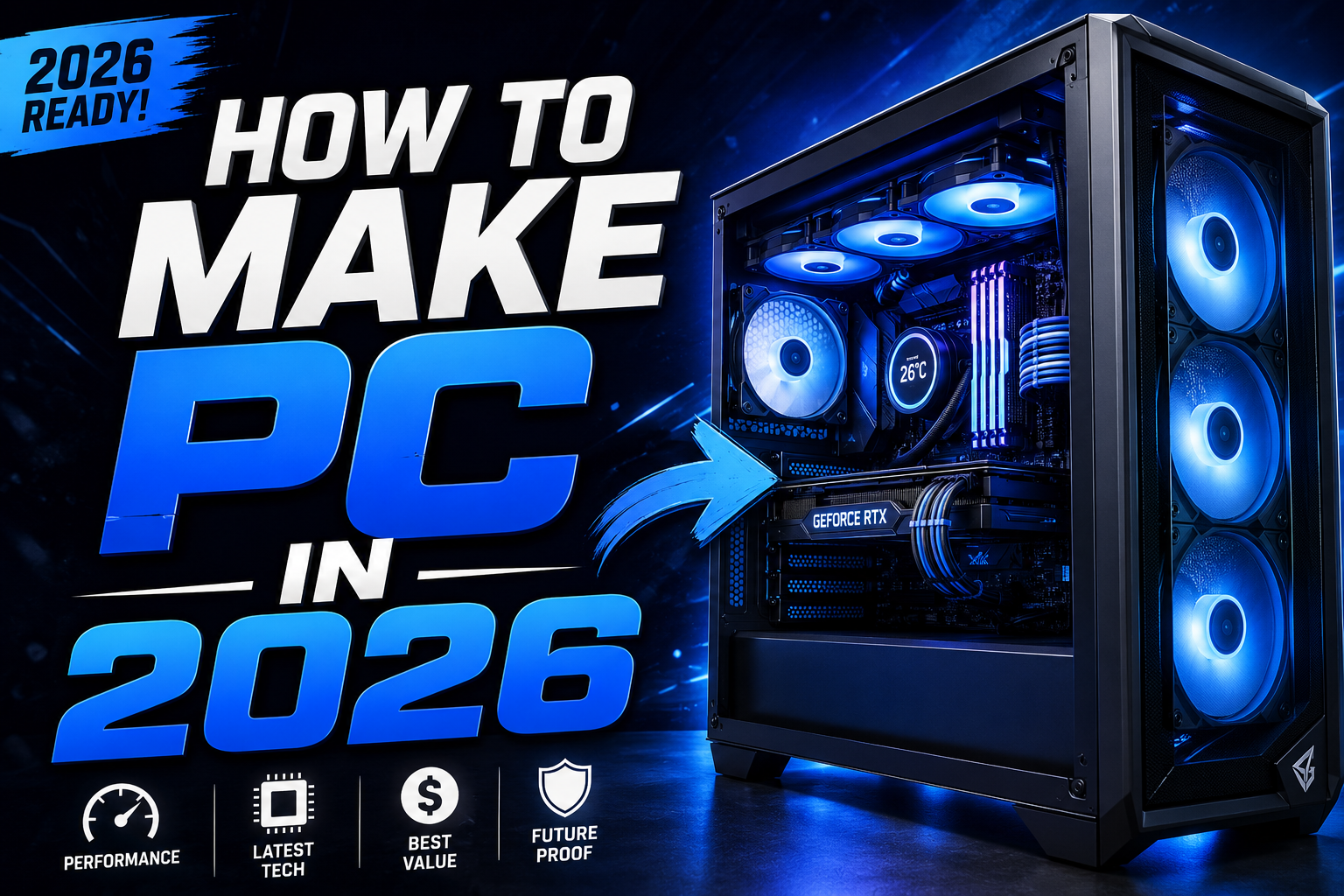
First of all you have to confirm for what purpose you are building the PC for gaming, Creative work or for professional use because this way you can get exact performance, powerful GPUs and efficient cooling systems which you need-this also saving money. In this article we go throw everything you need to know to build a PC in 2026
Step 1: Budget and Purpose
Firstly, you decide for what purpose your PC will be used for:
| PURPOSE | SPECIALITY | BUDGET |
| Workstation | Efficiency, Upgrade Potential | 1000$-1500$ |
| Creative Work | High Ram, Fast SSD Storage | 2000$-2500$ |
| Gaming | High Performing graphics Cards | 1500$-2000$ |
| Machine Learning | High VRAM, Parallel Processing | 4000$-6000$ |
Gaming PC
- Focus on GPU performance
- 16–32GB RAM
- Fast SSD storage
- High-refresh-rate monitor support
Content Creation PC
- Strong CPU performance
- Large RAM capacity (16–32GB)
- Multiple SSDs
- Powerful GPU for rendering
AI and Development Workstation
- High VRAM GPU
- Large memory capacity
- Fast multicore processor
- Extensive storage
Machine Learning Use
- Strong processor
- High VRAM like (64GB)
- Parallel Processing
- Fast SSD storage
Step 2: Selecting Your Components
CPU (Central Processing Unit)
CPU is the brain of your Computer System. There are some points which should be in your mind when you buy a new CPU: Power Efficiency, Clock Speed, and Number of cores. Build a PC in 2026 modern Computers have 6-8 cores for gaming PCs and 12-24 cores for professional workloads.
Motherboard
Motherboard is called the “spine” of Computer that connects all system components. Ensure its compatible with your chosen CPU and RAM.
RAM (Random Access Memory)
RAM is called short-term memory that affects multitasking and application performance. For basic use 16GB, for gaming and creative work 64GB and for professional Works 64GB is good option.
GPU (Graphics Card)
Graphic Card is the most important component for gaming and creative work. Here are some General recommendations:
- 1080p gaming: Mid-range GPU
- 1440p gaming: Upper mid-range GPU
- 4K gaming: High-end GPU
Storage (ROM)
For fast Pc is it recommended to use Solid State Drive (SSD). Primary Drive: 1TB–2TB NVMe SSD
PSU (Power Supply Unit)
PSU is the component that powers your PC. Use an online power supply calculator to ensure you get one with enough wattage for your components.
PC Case
Choose one that balances all your components and has good airflow for cooling.
Cooling
Most of CPUs come with stock cooler but aftermarket coolers provide better performance.
Step 3: Prepare your Workspace
There are some safety precautions you should maintain before installing your PC.
- Work on a clean surface
- Avoid carpeted areas
- Ground yourself periodically
- Handle components by their edges
Step 4: Install the Motherboard Components
Installing the CPU: Firstly, open the CPU socket retention mechanism Align the CPU using the corner marker Gently place the CPU into the socket and then lock the retention arm.
Install RAM: Locate the recommended memory slots in your motherboard manual. Open the slot latches Align the notch on the RAM stick Press firmly until the latches click.
Install the Storage: If you have an M.2 SSD, insert it into the slot on the motherboard at a 45-degree angle and secure it with a screw.
Install the CPU Cooler: Follow the manufacturer’s instructions to install the cooler. If it doesn’t have pre-applied thermal paste, apply a small, pea-sized amount to the center of the CPU.
Step 5: Install the Motherboard
- Carefully place the motherboard into the case.
- Align with standoffs.
- Install screws evenly.
Step 6: Install the Power Supply
Mount your PSU into its designated area in the case, usually at the bottom or top, and ensure its fan has room for airflow. Common power connections:
- 24-pin motherboard cable
- CPU power cable
- GPU power cable
- SATA power cable
Step 7: Install the Graphic Card
Remove the rear PCIe bracket from the case, then push the GPU firmly into the PCIe slot on the motherboard until it clicks. Secure it with screws and connect the required power cables from the PSU.
Step 8: Connect Front Panel and Case Cables
- Power switch
- Reset switch
- Power LED
- USB ports
- Audio ports
Step 9: Install the Software Setup
Most users install Windows or Linux.
General process:
- Create bootable USB media.
- Select USB as boot device.
- Follow installation prompts.
- Install onto primary SSD.
Install Drivers
- Motherboard chipset drivers
- Graphics drivers
- Networking drivers
- Audio drivers
Final Checks: Monitor your system’s temperatures and run a benchmark to ensure everything is stable. Now you can close up your case and enjoy your new, custom-built PC!
Conclusion
Build a PC in 2026 is more accessible than ever. Modern hardware is designed to simplify installation, improve reliability, and provide exceptional performance. By carefully selecting compatible components, following proper assembly procedures, and configuring your system correctly, you can create a computer tailored precisely to your needs.